Map
<gcds-map>
-
GitHub -
Figma
A map is an interactive tool to display and query layered location information at varying scales
<gcds-map> component preview
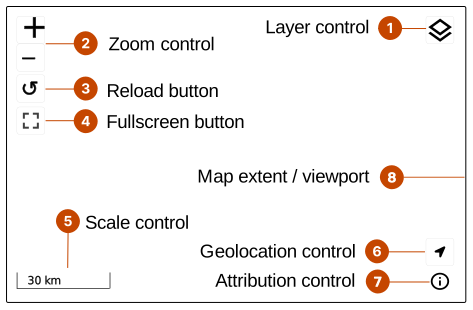
Map anatomy
- The Layer control is an expandable list of layers. Each entry provides detailed controls for manipulating layer characteristics.
- The Zoom control is a pair of keyboard-accessible buttons allowing users to zoom in or out.
- The Reload button allows users to reset the map to its original location. It does not change the layer states.
- The Fullscreen button is allows the map to be viewed fullscreen. When in fullscreen mode, the button action returns the map to non-fullscreen state.
- The Scale bar control provides an active readout of the rough idea of the scale of the map.
- The Geolocation control is a 3-state control. It is either off, tracking the device location, or showing the last known device location.
- The Attribution control is required, and shows the license link for map layer content.
- The map viewport is where map layer content is rendered.
Design and accessibility for map
The map component supports keyboard use. Map controls follow a predefined visual and tab order. You can add or remove most controls, except the required attribution (licensing) control.
When choosing map layers (especially image-based WMS/WMTS layers), select high-contrast styling and avoid relying on colour alone to communicate meaning. Provide alternate selectable styles, if possible.
For non-visual access, provide a short text description of the map’s purpose. For topical maps, add a <map-caption>…</map-caption> as the first child of the map component.
When the map includes features, they are grouped as a single tab stop. Use the arrow keys to move between features. Features are ordered by ascending distance from the map centre.
Help us improve
Have questions or a request? Give feedback on our contact form.
Something's wrong? Raise it through GitHub with an